The
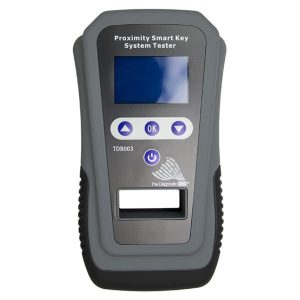
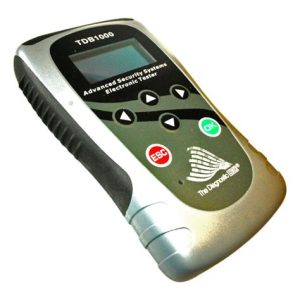
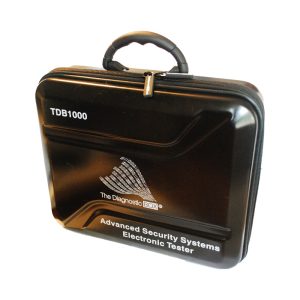
TDB1000 Advanced Security Systems Electronic Tester (ASSET) is a standalone
OBD key programming system. It is developed by
The Diagnostic Box. The device provides a streamlined interface for advanced vehicle immobilizer operations.
Core Capabilities
Architecture and Operation
Technical Tips
-
Maintain Adequate Voltage: Ensure vehicle battery voltage sits above 12.5 Volts. Connect a clean battery stabilizer before cycling systems or starting PIN reads.
-
Verify Diagnostic Port Line Integrity: If communication drops or the screen flashes red, disconnect the tool, cycle the vehicle’s ignition, wait 10 seconds, and retry.
-
Verify Key Generation Variants: Certain vehicle ecosystems require transponder pre-coding or variant designation before OBD programming can begin.
-
Clear Fault Codes First: Active trouble codes in the Immobilizer or Body Control Module (BCM) can block programming sequences. Always sweep and clear codes before initiating programming.
-
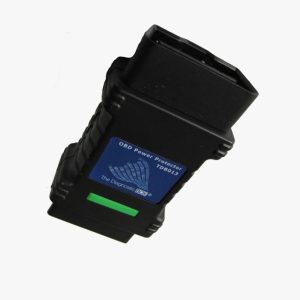
Power Connection Constraints: Power the TDB1000 using only the standard 16-pin OBD cable or the provided PC update USB cable. Never plug the hardware into non-standard external video ports (DVI/HDMI monitors) as it will damage internal circuitry.
Brief Instruction Manual
Step 1: Pre-Inspection and Vehicle Setup
- Engage the hazard lights to keep the communication network active.
- Identify the vehicle OBD2 diagnostic port location.
-
Ensure the vehicle battery is fully charged.
Step 2: Connection
- Insert the TDB1000 16-pin connector into the diagnostic port.
- The unit will power on via the port’s 12V supply line.
-
Turn the vehicle ignition to the “ON” position using an unprogrammed or existing key.
Step 3: Vehicle Selection
- Navigate the main screen menu using the directional keypad.
-
Select the correct global region, followed by the specific make, model, and manufacturing year.
Step 4: PIN Extraction and Key Configuration
- Select “Read PIN Code” or “Pin Extraction” from the function menu if required by the vehicle system.
- Once the PIN displays on the screen, select “Program Key” or “Add Key”.
-
Follow the on-screen prompts precisely, such as holding proximity fobs against the start button when instructed.
Step 5: Verification
- Wait for the programming confirmation tone or success window to display.
- Disconnect the TDB1000.
-
Test all remote buttons, proximity lock features, and start the engine to confirm successful installation.
Importance of Technical Support for Users
Advanced vehicle electronics require continuous
technical support to maintain smooth locksmithing operations:
- Real-Time On-Site Troubleshooting: Locksmiths operate under tight time frames. Immediate live troubleshooting prevents vehicle lockouts and failed jobs out in the field.
- Immobilizer Evolution Data: Automotive manufacturers update algorithms and security parameters constantly. Access to specialized diagnostic platforms like WikiKey provides crucial module locations, component reference numbers, and real-time guidance.
- Mitigating Module Damage Risks: Key programming carries the inherent risk of bricking sensitive ECUs or corrupting files. Having expert support ensures access to reliable dashboard recovery files if communication breaks down.
-
Firmware Maintenance: Bug fixes, patch rollouts, and newly supported models are constantly pushed to the tool. Support infrastructure ensures the tool stays updated to handle modern security variations.